📱 13 home-screen widgets

Your calendar belongs
on your home screen.

Calendar+ puts a real calendar where you actually look — thirteen widget shapes and sizes, each with its own colors and settings. Then it lets you tune the app itself down to the pixel.

13
View Modes
25+
Languages
13
Home-Screen Widgets
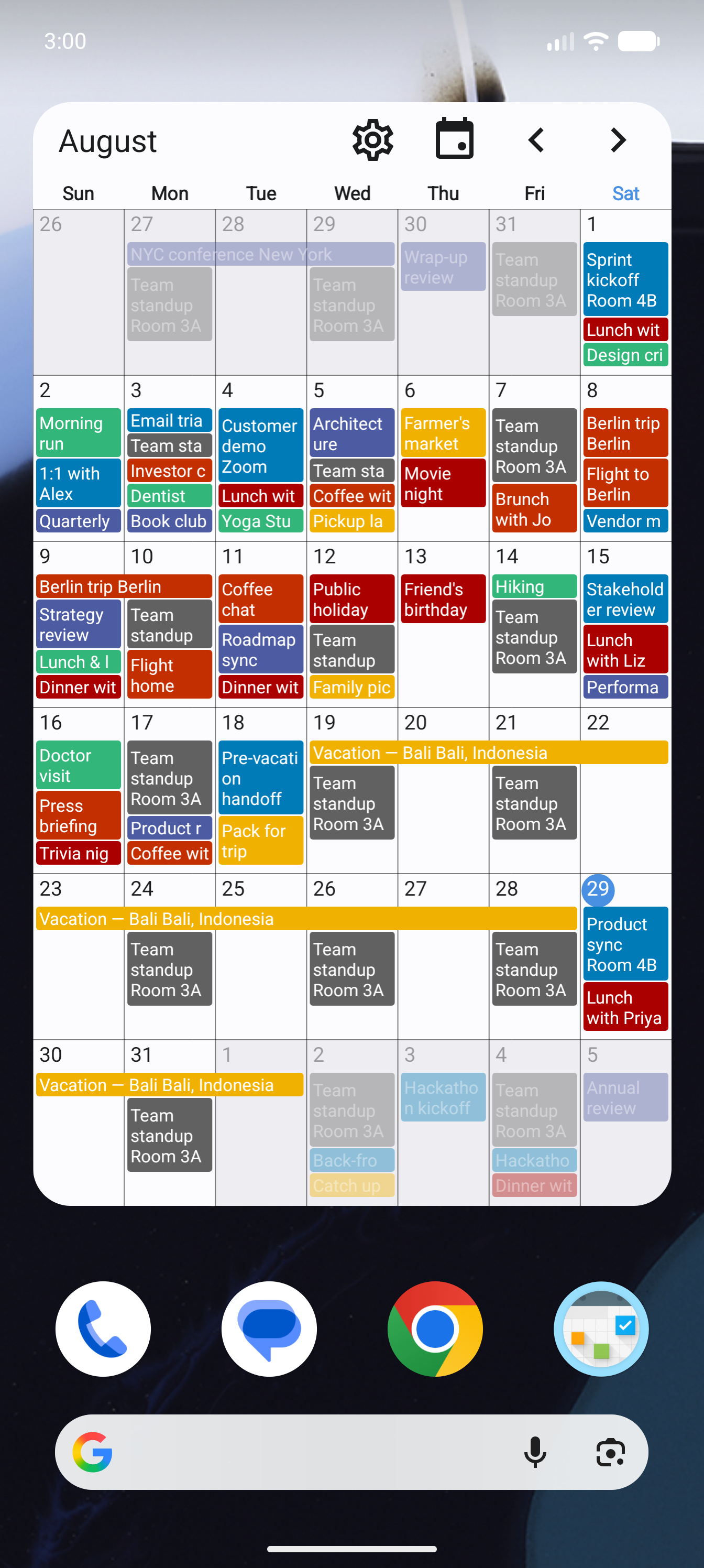
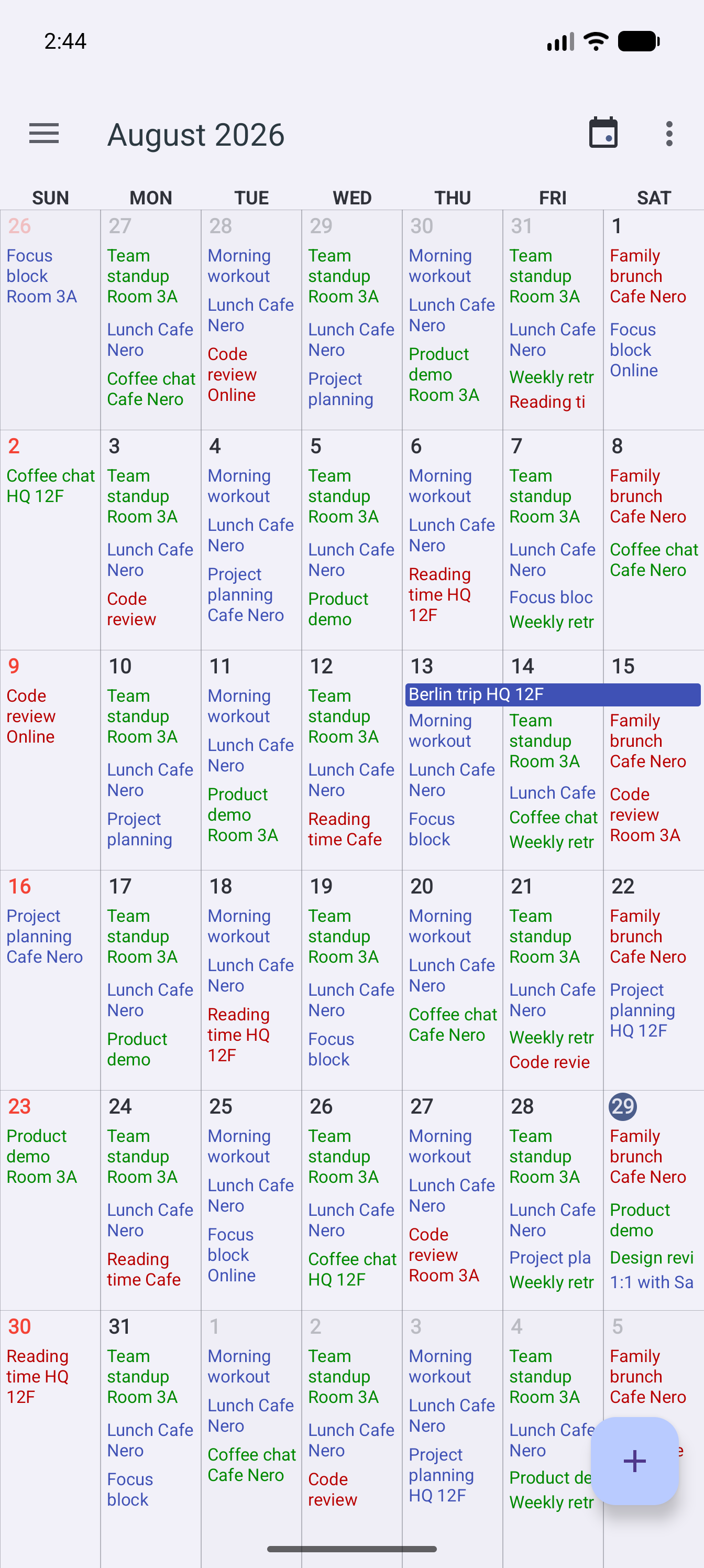
Calendar+ month view on a phone screen, showing colored events across a full month grid
Thirteen widgets.
Your calendar, on the home screen.
Thirteen widgets, nine kinds. Pick the shape that fits your home screen — a full month, a three-week strip, a single week, today's agenda, or a one-tap add button.

Month

3×3 · 4×4 · 5×5 · 4×5 · 5×6

Three-week month

6×4

One week

4×1

Two weeks

4×2

Three weeks

4×3

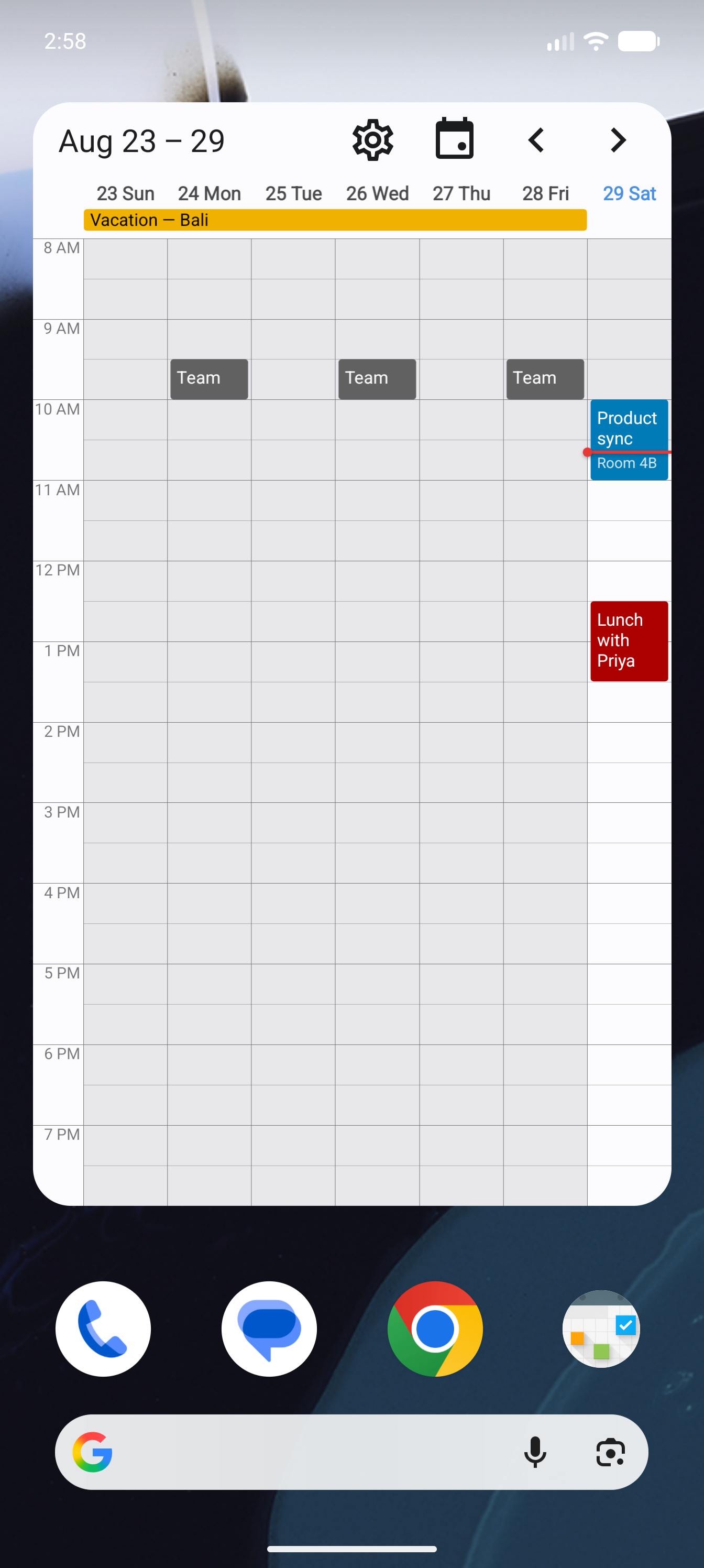
Day & week

4×4

Agenda list

Resizable

Today

Compact

Quick add

4×1

Every widget keeps its own settings — transparency, week numbers, first day of the week, and which calendars it shows — so two widgets on the same home screen can look completely different.

Everything You Need
and Almost Nothing Fixed
Calendar+ has been refined for years around one idea: your calendar should look and behave the way you want, not the way a default decided.
🖼️

13 Home-Screen Widgets

Thirteen in all: a full month in five sizes, three-week and two-week strips, a single week, a day-and-week grid, a scrolling agenda list, a today card, and a one-tap quick-add button.

📅

13 View Modes

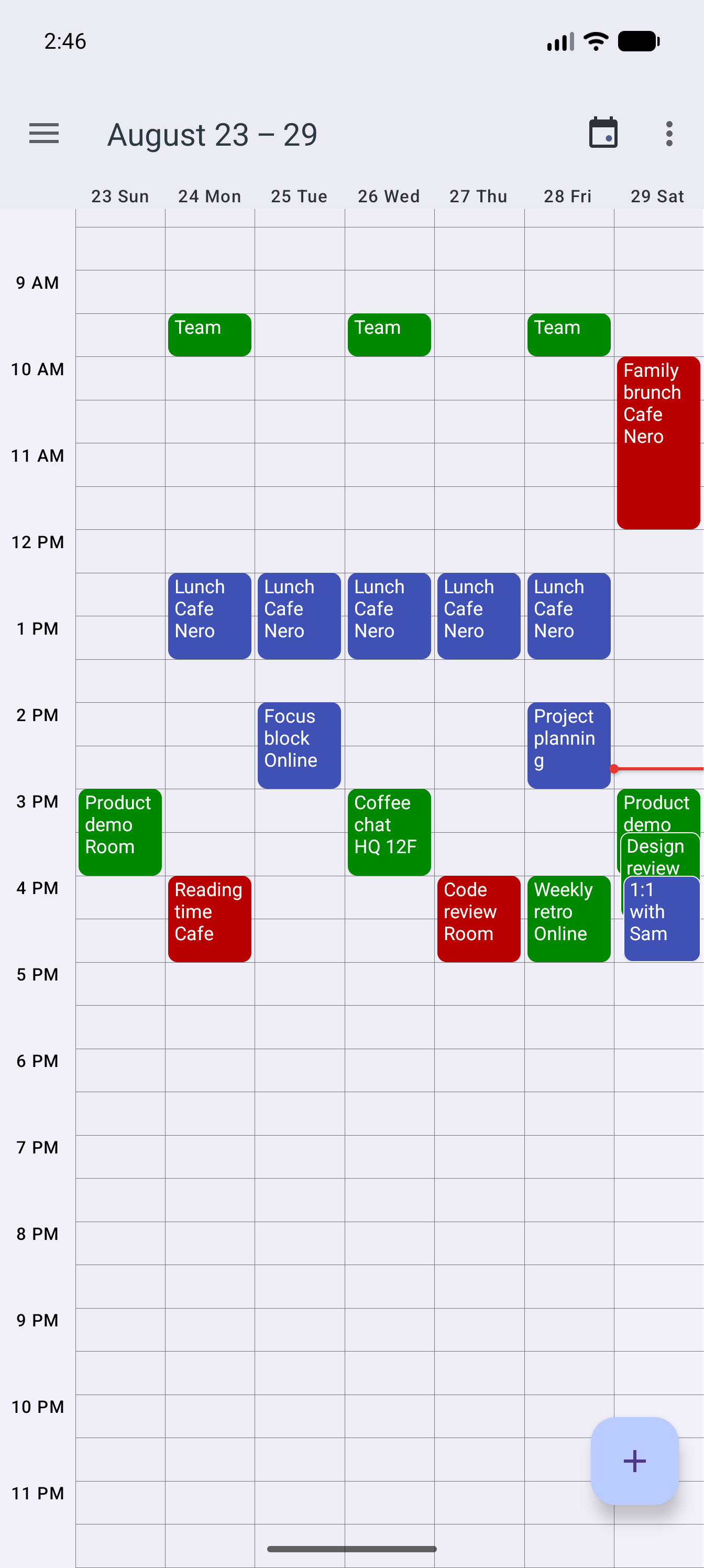
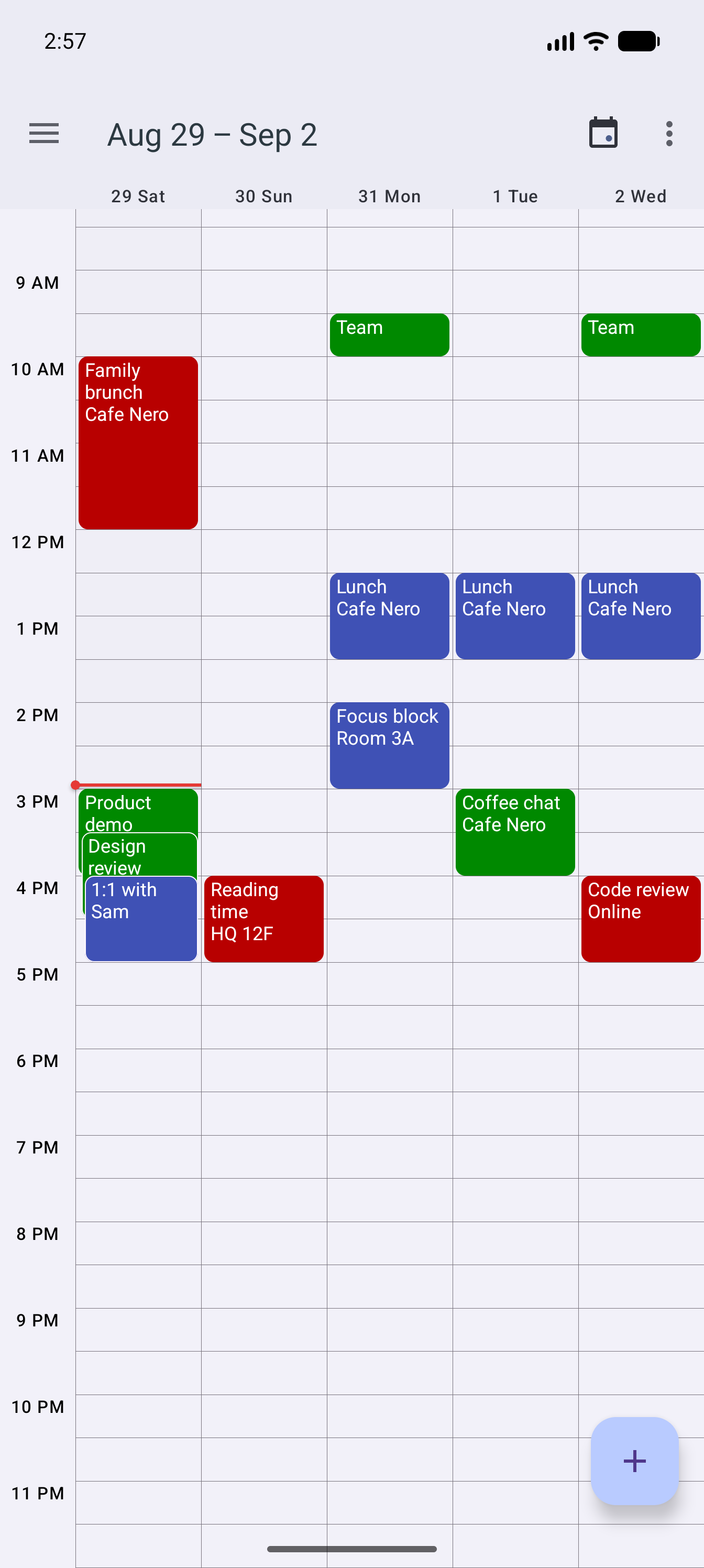
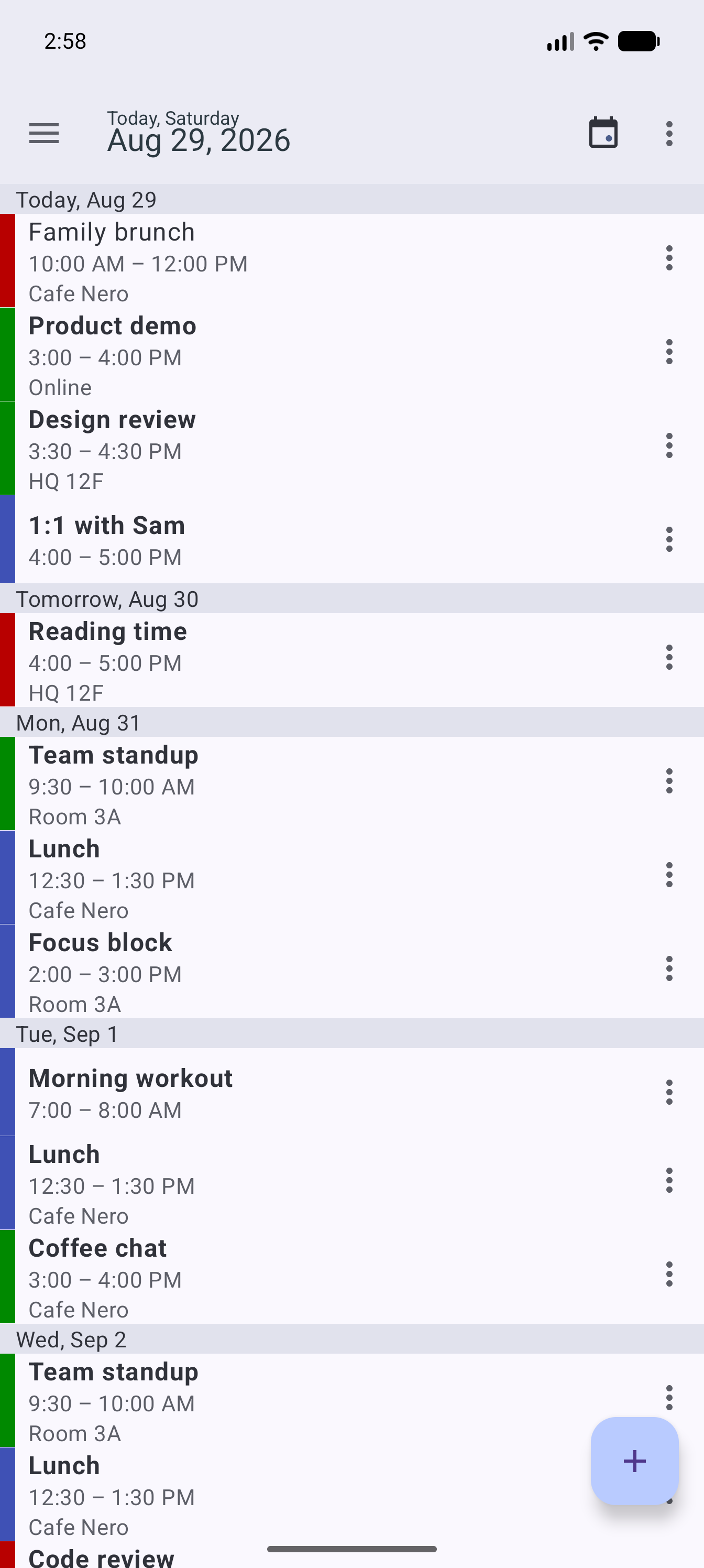
Day, week, month, and agenda, plus custom views of 2, 3, 4, 5, 6 or 7 days and 2, 3 or 4 weeks. Pick the span that matches how far ahead you actually plan.

🎨

Customize Almost Everything

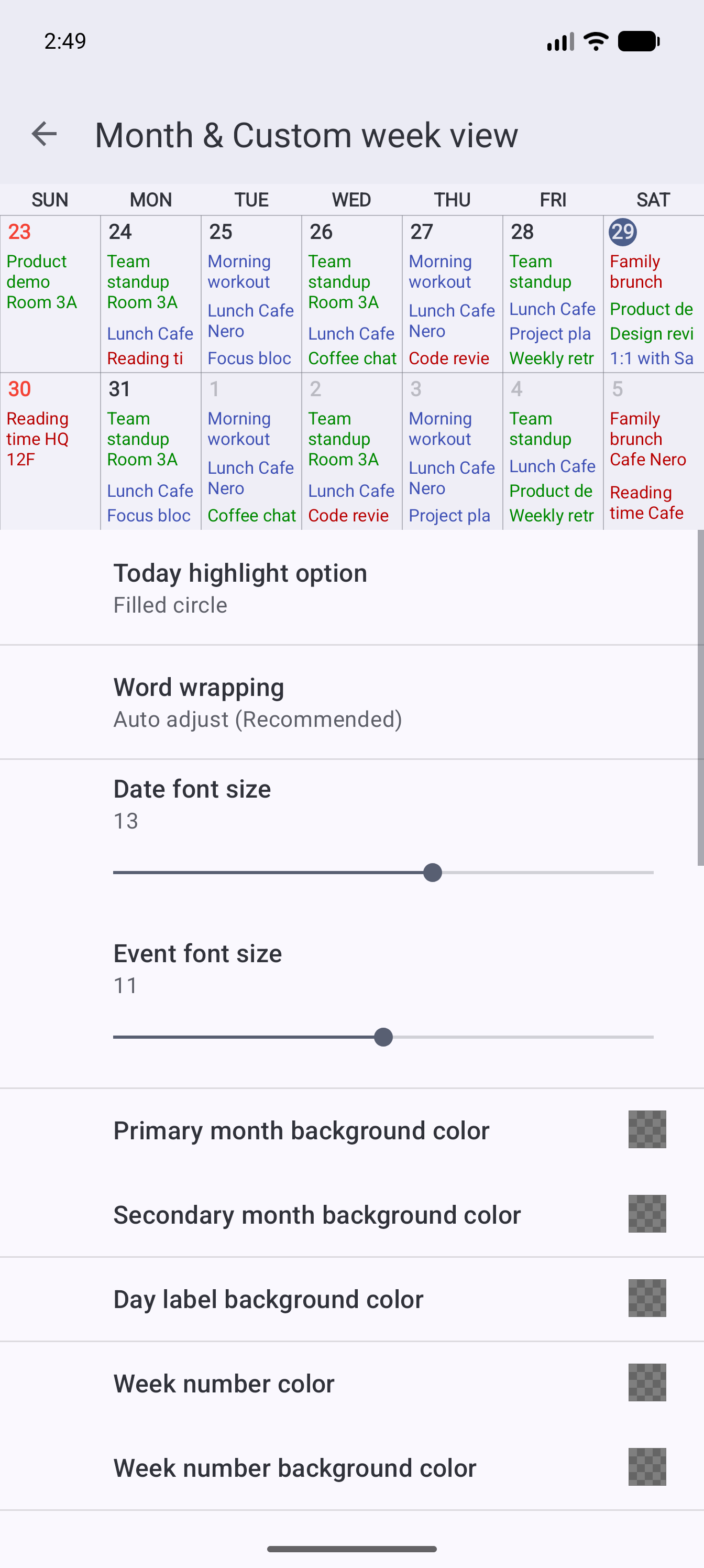
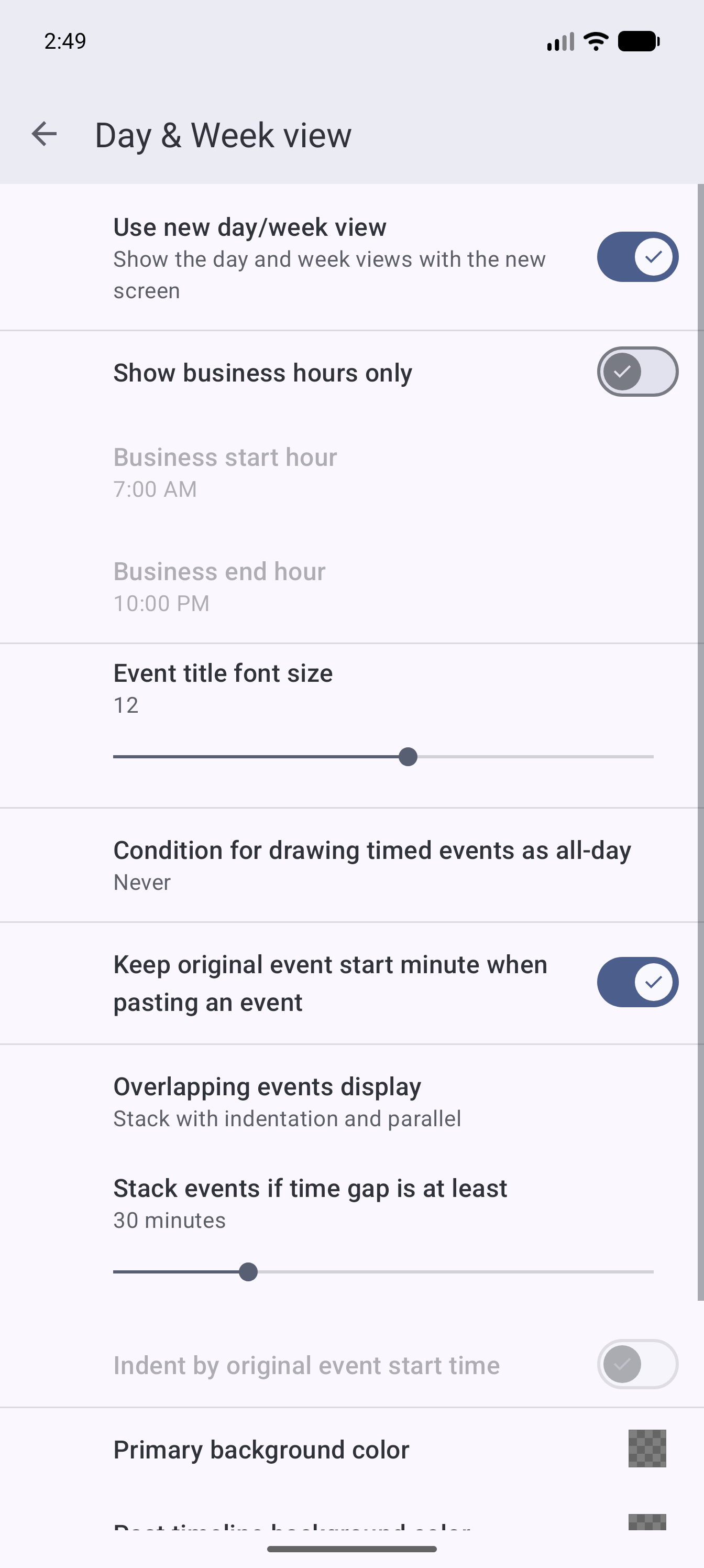
The month view alone exposes 27 settings — separate colors for the current and adjacent months, day labels, week numbers, all-day and timed event text, plus word wrap, font sizes, rounded event chips, start-time placement, Saturday, Sunday and holiday highlighting, grid lines, and per-tap actions.

🖉

Editing That Keeps Up

Drag an event to reschedule it, copy and paste between days — keeping the original minute or snapping to the slot, your choice — and tap an empty slot to create a new one on the spot.

🔔

Reminders That Fit

Alerts for timed and all-day events, default lead times you pick from, snooze straight from the notification, and your own alert sound.

🌐

Built for Real Schedules

Narrow the grid to your business hours, choose how overlapping events stack, set a home time zone that survives travel, and search every event by text.

See It
Before You Install
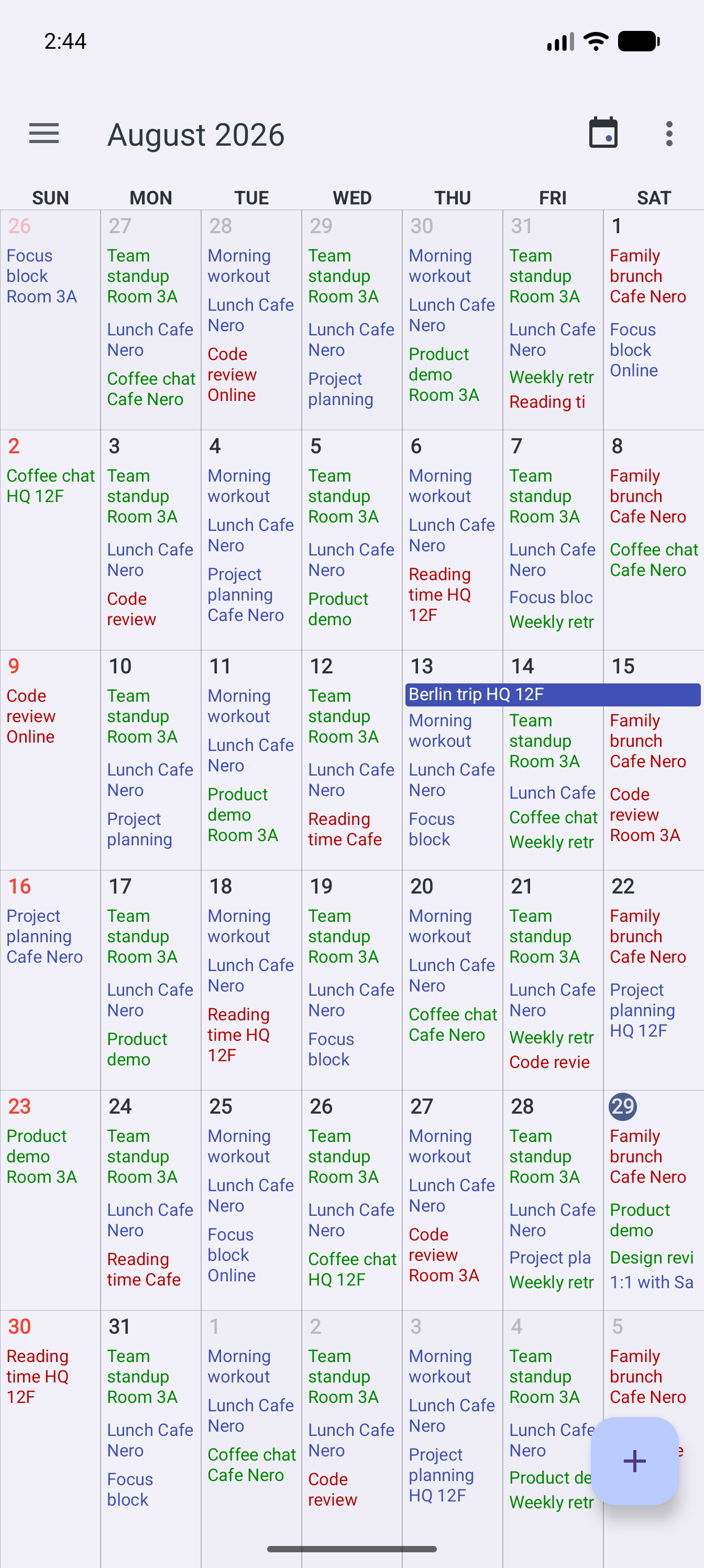
Month, week, custom spans, and the settings behind them.
📅
📧
☁️
📱
Calendar+
All Your Calendars,
Nothing New to Sign Into
Calendar+ reads the calendar accounts your phone already has. There is no separate account, no import step, and nothing to migrate.
🌐

Google Calendar

Events from any Google account synced to your phone. Edits go back through Google’s own sync, so every other device sees them.

📨

Outlook, Exchange & More

Any account you have added in system settings — work Outlook, Exchange, or a local calendar — appears alongside the rest.

🔒

Stays on Your Device

Calendar+ uses standard Android calendar permissions to read what is already on your phone. Your event data is not uploaded anywhere.

Made for How You Actually Look at Time
Three ways people use Calendar+, and the features that got built for each.
For people who want the week visible without unlocking anything. Stack a month widget and a week strip, size each to the space you have, and give them different colors so you can tell them apart at a glance.
Home-Screen Planners
Never open the app
📖
For calendars that are genuinely full. Set which calendar wins when events collide, choose how overlaps stack and when they compress, hide the hours you never book, and keep a home time zone while you travel.
📅
Heavy Schedulers
Many calendars, overlapping days
🎨
For anyone who has ever wished a calendar would just let them change that one thing. Colors per calendar and per element, font sizes, word wrap, rounded chips, faded adjacent months, and highlighted weekends and holidays.
✏️
Customizers
Pixel-perfect personal touches

Frequently Asked Questions

What home-screen widgets are included?

Thirteen. A month grid in 3×3, 4×4, 5×5, 4×5 and 5×6, a three-week 6×4, one-week 4×1, two-week 4×2, three-week 4×3, a day-and-week 4×4, a resizable agenda list, a today card, and a quick-add button.

Can I change how the calendar looks?

Extensively. The month and custom-week view alone has 27 settings, covering colors for the current and adjacent months, day labels, week numbers and event text, plus font sizes, word wrap, rounded event chips, start-time display, weekend and holiday highlighting, grid lines, and what a tap on a day or an event does.

What calendar views does it have?

Thirteen. Day, week, month, and agenda, plus custom spans of 2 to 7 days and 2, 3 or 4 weeks. The custom span is a single setting, so you can keep a 5-day work week or a 3-week planning horizon as your default.

Does it sync with Google Calendar or Outlook?

It reads and writes whichever calendar accounts are already set up on your phone — Google, Outlook, Exchange, or local. Syncing itself is handled by Android and the account provider, so there is no separate login and nothing to import.

Does my event data leave my device?

No. Calendar+ uses standard Android calendar permissions to read and write the calendars on your phone. It does not upload your events to a server of ours. The privacy policy linked in the footer covers this in full.

What is the difference between the free and paid versions?

Both are the same calendar, with the same widgets and the same view modes. The free edition is supported by ads. The paid edition has no ads and unlocks a few extra preferences — custom alert, snooze and default-duration timings, per-event snooze, quick add in the notification bar, and multi-week event highlighting. Everything described on this page works in both.

Does it work offline?

Yes. Calendar+ reads the calendar database on your phone, so browsing, creating, and editing all work with no connection. Changes sync out whenever the account provider next reaches the network.

How is it different from the calendar that came with my phone?

Depth. Thirteen widget shapes instead of one or two, 13 view modes including custom day and week spans, and per-element control over colors, fonts, spacing and highlighting that stock calendars do not expose.

What languages does it support?

The interface is translated into more than 25 languages, and dates, times, and week-start day follow your device’s regional settings.
Put Your Calendar Where You Look

Available on Google Play.